1. Start with the library you actually have
Measure the folders you plan to store, then add your expected growth and space for versions or extra copies. Movie counts are a poor shortcut because codecs, bitrates and runtimes vary. For an illustrative 6TB library growing by 2TB per year, two years of growth brings the files to 10TB before working headroom. That does not mean a 10TB drive is enough: advertised capacity, filesystem overhead and redundancy all affect usable space. Decide on the array layout before choosing drive capacity, and budget for a separate backup destination.
2. Give media files and server files different jobs
A large HDD can be a sensible home for media when its sustained read performance covers your playback workload. Jellyfin recommends SSD storage for its own application files because those accesses are less sequential. Keep capacity for three separate needs: the media library, the server database and artwork, and temporary transcode files. Plex notes that preview thumbnails and downloads can make its data directory much larger; inspect your actual usage rather than assuming one SSD size fits every server. For Plex temporary transcoding, follow its documented free-space requirement and location restrictions. A faster SSD will not by itself fix an unsupported codec or an overloaded transcoding processor.
Source: Jellyfin hardware and storage guidance
3. Choose a recovery plan, not just a parity drive
A mirror or parity array can keep files available through supported drive failures, but it is not an independent backup. Keep another copy of irreplaceable video, photos and server configuration, and decide how much time you could spend restoring the rest. SnapRAID is synchronized periodically: new files on a failed disk added after the last sync are not protected, and later changes elsewhere can affect recovery. It should not be described as identical to a live parity array. For an Unraid array, each parity disk must be at least as large as the largest data disk. Follow the documentation for your chosen system, including its checks and recovery procedure.
4. Buy the exact interface and capacity your server supports
For a SATA NAS or desktop array, shortlist documented CMR SATA models and check the enclosure's current compatibility list. A cheap SAS drive needs a compatible SAS controller; an ordinary SATA port is not enough. Compare equal capacities and conditions using current prices, then calculate the bill for every drive you need. A low unit price can still mean spending more overall. New, used and renewed offers have different seller and warranty considerations. Shucking adds uncertainty about the internal drive and warranty, so compare a known internal model before deciding the saving is worthwhile. More expensive or larger drives are not automatically the right choice for a small library.
5. Compare the whole storage purchase
The examples below illustrate capacity arithmetic, not tested stream counts or a universal build recommendation. Two 12TB drives in a mirror provide 12TB before overhead, while four 8TB drives in RAID 5 provide 24TB. Those layouts need different numbers of bays and have different recovery tradeoffs. Include the enclosure, server SSD if needed, backup storage and any network changes in your budget. Reuse suitable hardware when it meets the requirements. Before buying a NAS to run Plex itself, verify support for your player devices, codecs, subtitles and intended transcoding features; a NAS storing the files and a separate server running Plex are also possible.
Illustrative drive layouts, before filesystem overhead
| Example layout | Drives purchased | Nominal capacity | Check before choosing |
|---|---|---|---|
| Single media drive | 1 × 12TB | 12TB | No drive-failure redundancy; keep a separate backup |
| Two-drive mirror | 2 × 12TB | 12TB | Both drives and a two-bay system must fit the budget |
| Four-drive RAID 5 | 4 × 8TB | 24TB | One-drive fault tolerance; another failure during recovery risks the array |
| Model & capacity | Fit & specifications | US offer |
|---|---|---|

Samsung 860 EVOMZ-76E1T0
|
Check the slot, protocol and heatsink clearance; compare the exact-model endurance rating. Used / renewed: check seller warranty and returns. |
$110.00$110.00/TBView on Amazon ↗ — MZ-76E1T0, usedChecked Oct 27, 2026 13:32 UTC |

Kingston KC3000SKC3000S/1024G
|
Check the slot, protocol and heatsink clearance; compare the exact-model endurance rating. |
$297.77$290.79/TBView on Amazon ↗ — SKC3000S/1024G, newChecked Oct 27, 2026 13:36 UTC |

Corsair MP600 ELITECSSD-F2000GBMP600ENH
|
Check the slot, protocol and heatsink clearance; compare the exact-model endurance rating. Used / renewed: check seller warranty and returns. |
$299.50$149.75/TBView on Amazon ↗ — CSSD-F2000GBMP600ENH, usedChecked Oct 27, 2026 13:36 UTC |

Western Digital WD GoldWD8005FRYZ
|
Bulk storage candidate. Check sector format, cooling and the warranty provider. |
$414.99$51.87/TBView on Amazon ↗ — WD8005FRYZ, newChecked Oct 27, 2026 13:32 UTC |

Seagate IronWolfST10000VN0008
|
10TB per bay. Check usable capacity after RAID and your NAS compatibility list. Used / renewed: check seller warranty and returns. |
$339.99$34.00/TBView on Amazon ↗ — ST10000VN0008, usedChecked Oct 27, 2026 13:34 UTC |

Seagate IronWolfST12000VN0008
|
12TB per bay. Check usable capacity after RAID and your NAS compatibility list. |
$529.94$44.16/TBView on Amazon ↗ — ST12000VN0008, newChecked Oct 27, 2026 12:24 UTC |

Toshiba MG07MG07ACA14TE
|
Bulk storage candidate. Check sector format, cooling and the warranty provider. Used / renewed: check seller warranty and returns. |
$354.00$25.29/TBView on Amazon ↗ — MG07ACA14TE, usedChecked Oct 27, 2026 13:35 UTC |

Toshiba N300 ProHDWG81GXZSTB
|
16TB per bay. Check usable capacity after RAID and your NAS compatibility list. |
$677.08$42.32/TBView on Amazon ↗ — HDWG81GXZSTB, newChecked Oct 27, 2026 12:23 UTC |
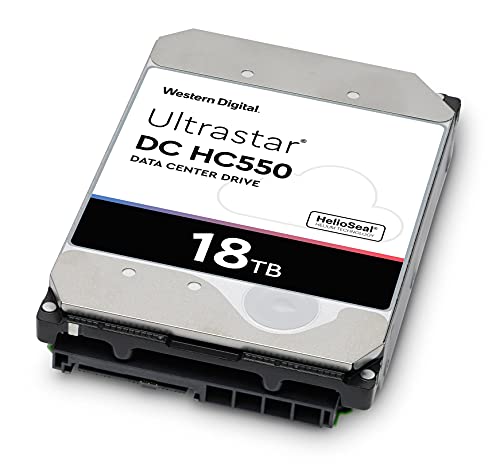
Western Digital Ultrastar DC HC550WUH721818ALE6L4
|
Bulk storage candidate. Check sector format, cooling and the warranty provider. Used / renewed: check seller warranty and returns. |
$529.00$29.39/TBView on Amazon ↗ — WUH721818ALE6L4, usedChecked Oct 27, 2026 05:17 UTC |

Toshiba N300 ProHDWG82AXZSTB
|
20TB per bay. Check usable capacity after RAID and your NAS compatibility list. |
$766.99$38.35/TBView on Amazon ↗ — HDWG82AXZSTB, newChecked Oct 27, 2026 13:34 UTC |
Specifications: linked manufacturer model pages. Selection covers different capacities and families; it is not a reliability ranking. Prices are per listed drive; Amazon’s price and availability at purchase apply.
Frequently Asked Questions
Do I need an SSD for 4K media files?
How many streams can one hard drive serve?
How large should my Plex SSD be?
Should I buy used enterprise HDDs for Plex?
Sources
Ready to find the best deal?
Compare Amazon US offers by capacity, condition and price per TB.